Test your mobile website through real customer tasks
Check mobile menus, content, call links, forms and page behaviour through actual customer tasks. A page that fits the screen still needs testing.
 Robert TicknerWeb designer, Melbourne
On this page
A website can fit a phone screen and still be awkward to use. The menu may hide a service, the form may ask unclear questions or the page may shift just as someone taps a button.
Test the actions customers need to complete. That gives you a better work list than simply checking whether the desktop design becomes one column. Start with your main service and its contact route.
Find the service from the first screen
Open Home without relying on your knowledge of the site. Can you explain the business and find its main services? Can you open the menu, follow a link and close it again?
The Home page guide helps decide what belongs near the beginning. A smaller screen makes the order more visible: anything placed after a long introduction asks the visitor to do more scrolling before reaching the next task.
Use descriptive menu labels. “Services” can introduce a group, but the individual links should identify the actual offers. Avoid relying on an icon the customer must interpret without a label.
Read the same important information
Keep service scope, suitability, proof and contact details available on mobile. You can rearrange sections or use accessible expandable content where appropriate. Do not remove essential answers only to make the page shorter.
Google’s mobile-first guidance explains its use of mobile content. Our SEO website foundations connect that point with headings, metadata and page access.
If you have a detailed table, check that it remains usable on a small screen. Horizontal scrolling can work for a table, but the whole page should not become wider than the viewport.
Check touch and keyboard controls
Tap the main buttons, expand the FAQs and try the form fields. Give nearby controls enough space that the intended action is clear. Check that a sticky header does not cover the heading you just followed.
Use a keyboard too. Focus should move through useful controls in a sensible order and remain visible. Forms need labels that identify their fields, not only placeholders that disappear while typing.
The typography guide covers readable text. The colour guide explains why a branded button also needs enough contrast to be understood.
Follow the enquiry all the way through
Open the service page, read the scope and use the contact route. Check phone links and email links. On a deployed form, send an agreed test and confirm the business receives the message.
Try invalid input so you can see whether the error explains what to fix. Confirm the success message or thank-you page tells the customer what happened. The enquiry-page guide covers the information the first response needs.
Check an optional website field with a complete address. If the business often receives short domain names from customers, decide how the field should explain the expected format.
Review loading and visual stability
Watch the page while it loads. Do images push text down? Does a late banner cover the contact button? Do menus respond when you expect them to?
Use measurement tools alongside those observations. Google’s Web Vitals guidance covers loading, responsiveness and layout stability. A simulated test and field data answer different questions; label the result you are using.
The website audit worksheet gives you a way to record the cause, affected task and next action. Keep customer tasks ahead of optional effects when setting priorities.
Make the checks repeatable
Record the device or viewport, page and task you checked. Include at least Home, a service page, an article and Contact. Repeat relevant checks after changes to navigation, forms or major content.
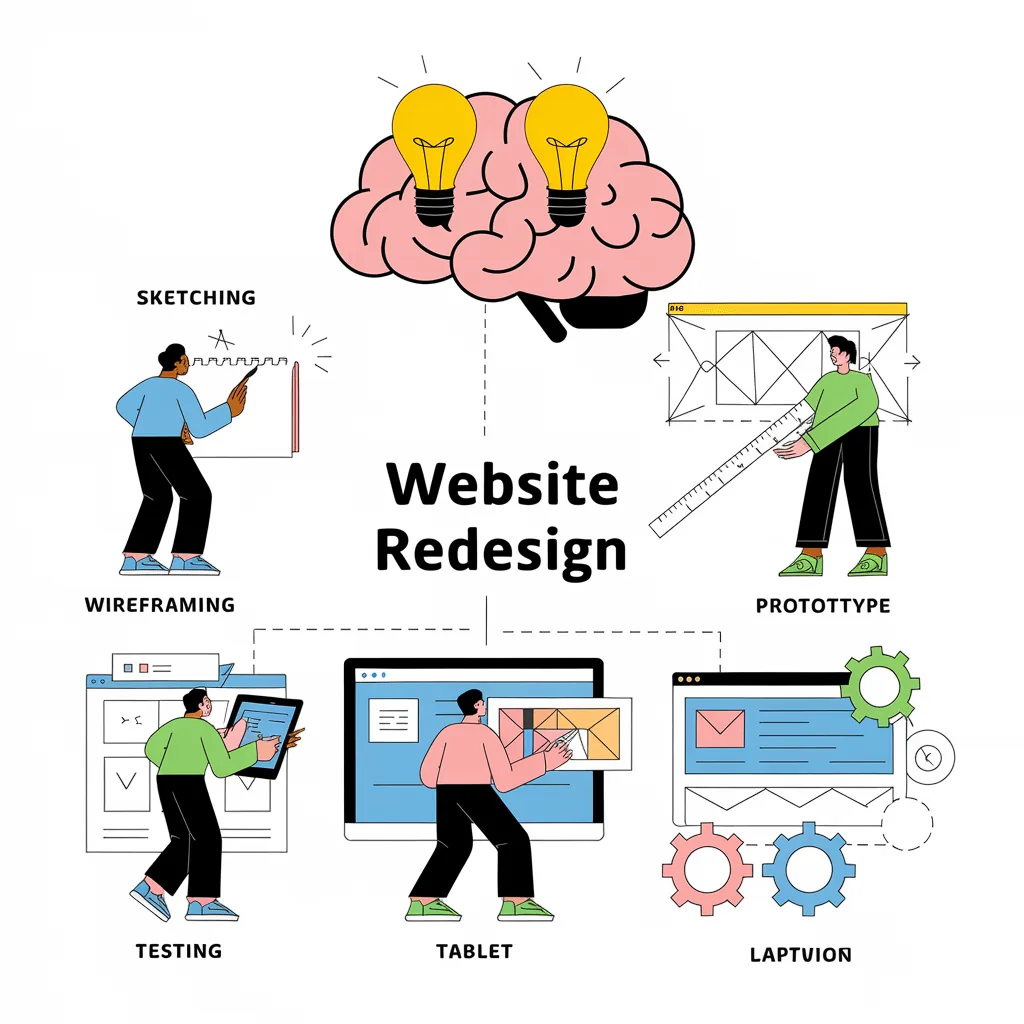
Use the launch checklist for the wider deployment review. If the same problems appear throughout the site, the website redesign process can turn the findings into a manageable brief. Our small business website service plans mobile layouts as part of the build, with the site’s actual customer tasks guiding the checks.
Robert Tickner
Founder and web designer, Web Design Studio Melbourne
Robert works directly with small businesses on website design, content structure and local SEO. His approach starts with the business offer and the customer’s next step.
First published .
Prepared with AI assistance. Examples labelled illustrative are not client results.