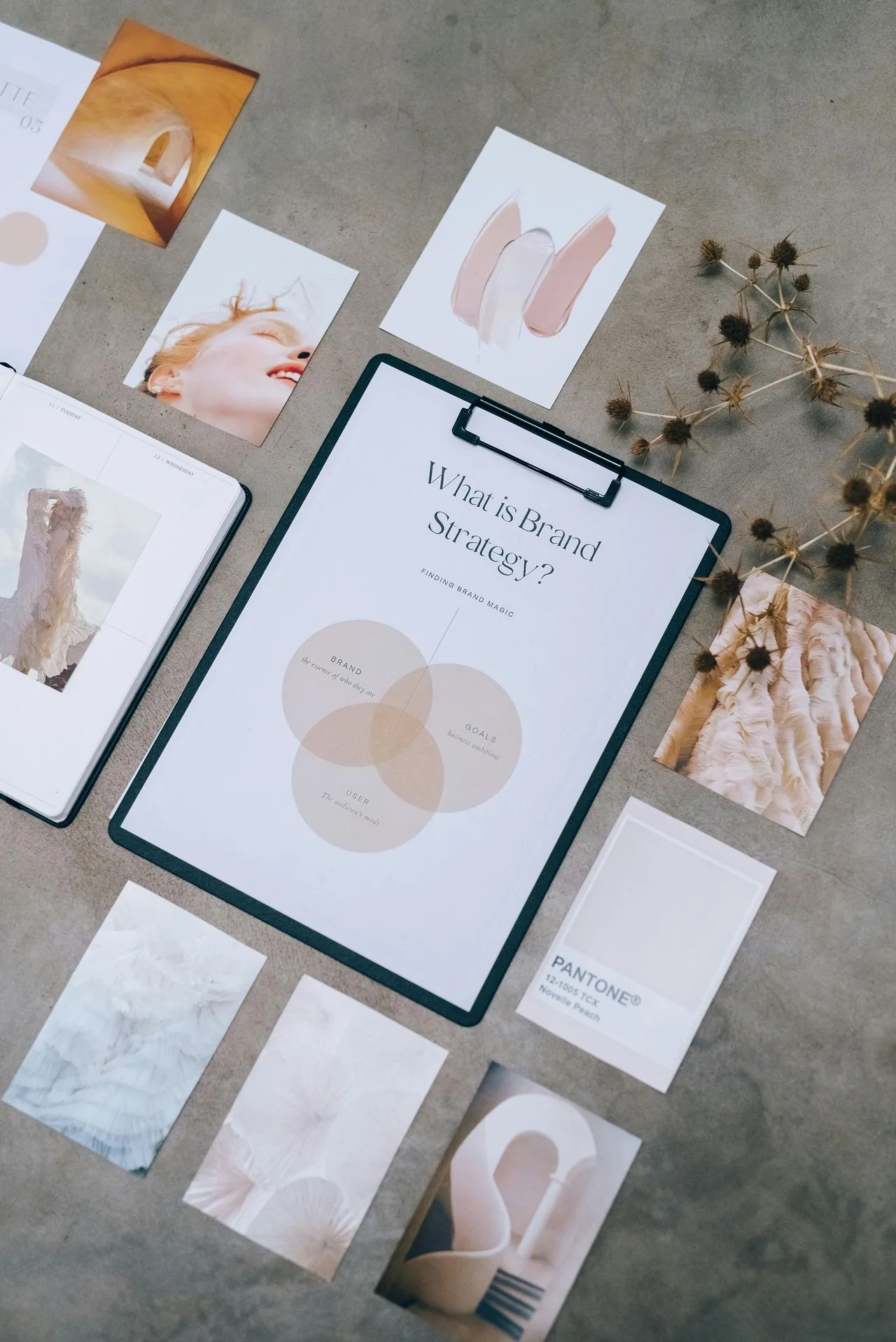
Choose website colours for clarity and brand consistency
Give website colours clear roles, check contrast and test real content. Build a practical palette without relying on fixed colour-to-emotion claims.
 Robert TicknerWeb designer, Melbourne
On this page
You like a colour. Your logo uses it. That still leaves the website designer with several decisions: where does it belong, what text sits on it and which buttons should stand out?
A useful palette assigns roles before filling the page with colour. It supports the brand and keeps content readable. I would not choose it around a promise that one colour automatically creates trust or makes people buy.
Start with the identity you already have
Collect the logo, existing colours and any brand guidance. Check which versions are current. If different documents show different colours, settle that before designing every page.
The brand-to-website brief helps connect those assets with audience, tone and layout choices. A custom website decision may include this work when the business needs a more detailed visual direction.
Look at the photos you plan to use as well. A palette has to work with actual content, not only with a clean colour-swatch presentation.
Give each colour a job
Separate text, backgrounds, borders, main actions and supporting accents. You can reuse a small set of colours consistently instead of choosing a new one for each section.
On a small screen, scroll the table to view every column.
| Role | What to check |
|---|---|
| Main text | Readable on the page’s common backgrounds |
| Background | Supports the content without obscuring it |
| Primary action | Recognisable and consistent across pages |
| Supporting accent | Adds emphasis without competing with the main action |
| Feedback or status | Includes words or another clear cue |
The branding consistency guide explains how repeated roles make pages feel connected. Consistency is more useful than treating every service card as a separate visual theme.
Check contrast using the actual combinations
Test the foreground and background together. A colour can work as a large background and fail as small text. A photograph can also change the contrast underneath a heading.
W3C’s contrast guidance explains a minimum ratio of 4.5:1 for ordinary text and 3:1 for qualifying large text. Check which case applies rather than calling every bold label “large”.
Use a contrast checker and then read the content on real screens. Numerical checks and practical reading checks help with different parts of the task. The typography guide connects contrast with font weight, size and spacing.
Keep colour from carrying the whole message
A red border around a field may be easy for some people to notice, but it still needs an error message. A highlighted menu item should have a clear state, not only a slightly different shade.
Use words, labels or recognisable controls alongside colour. Check links in paragraphs and focus states when using a keyboard. The mobile website guide adds checks for touch controls and smaller screens.
If you have several buttons, use consistent roles so people can recognise the main action. The persuasive design guide explains why that hierarchy should help the decision rather than pressure the customer.
Review a full page before approving the palette
Build a sample with headings, paragraphs, forms, photos and buttons. Look at it on a phone as well as a desktop screen. Ask whether the colours still support long reading and practical tasks.
The website examples guide helps you discuss reference sites in those terms. Borrow a useful principle, such as a clear action colour, without copying another business’s identity.
Document the choices
Record the colour values, roles and tested combinations. Keep the file with the brand brief so later pages do not gradually drift away from the original decisions.
Our custom website design service can work from an existing identity or discuss the design direction as part of the scope. Start with readable combinations and clear roles; the brand can then be expressed consistently across the site.
Robert Tickner
Founder and web designer, Web Design Studio Melbourne
Robert works directly with small businesses on website design, content structure and local SEO. His approach starts with the business offer and the customer’s next step.
First published .
Prepared with AI assistance. Examples labelled illustrative are not client results.